
TMLR Beyond PDF Submission Guidelines
Contents
- Quickstart with Online Editor
- Quickstart with Local Development
- Creating a TMLR Beyond PDF Submission
- Testing Your Submission Locally
- Submitting to TMLR on OpenReview
- Camera-Ready Instructions
Quickstart using Online Editor
We have introduced a new web-based editor for creating TMLR Beyond PDF submissions. This editor runs fully in the browser and provides a live preview of the rendered submission, as shown in the screenshot below:
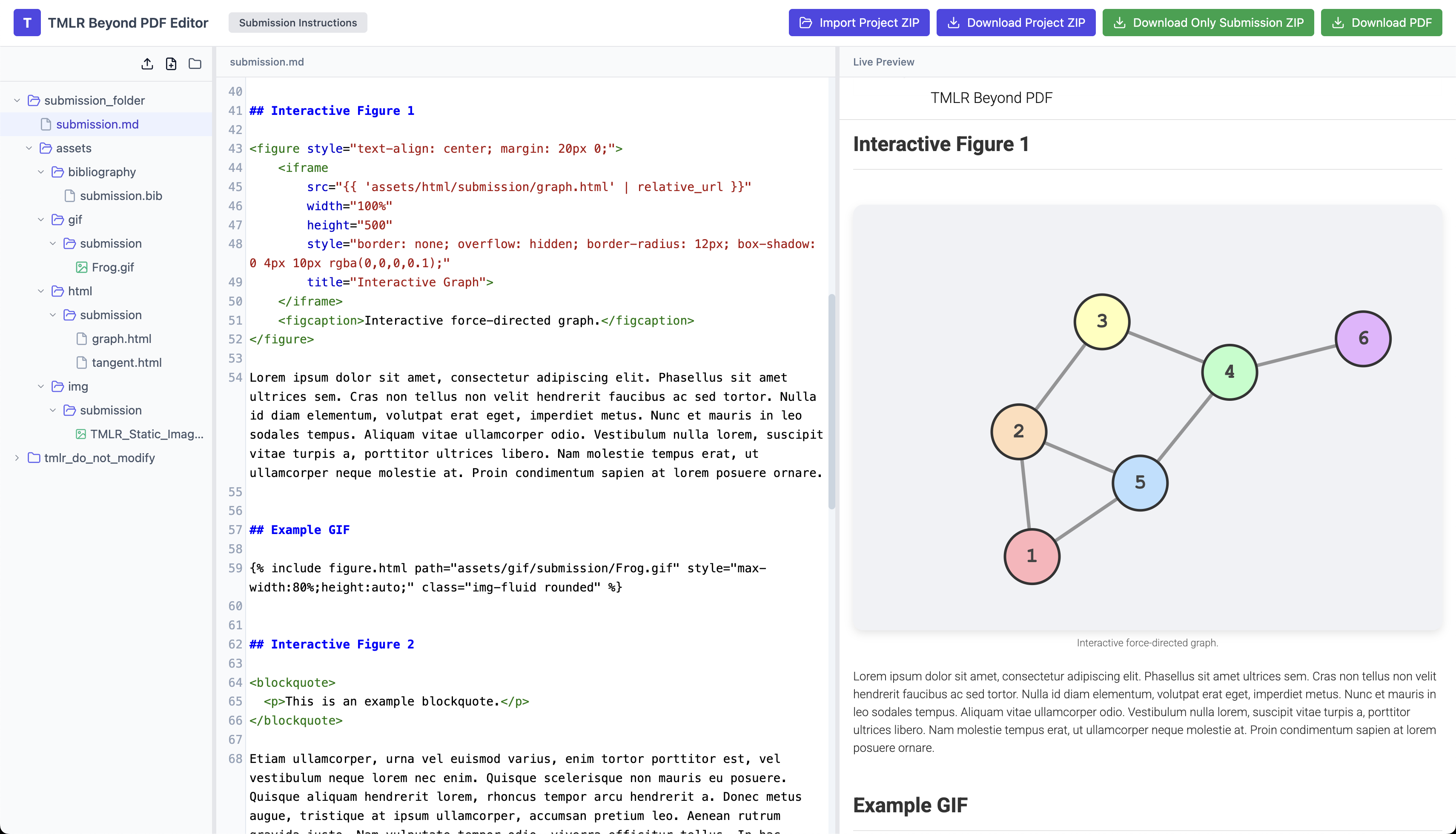
When creating a submission, do not change the names of the files or folders, and do not modify anything inside the tmlr_do_not_modify folder.
The main submission file must be named submission.md and the folder structure inside assets must remain unchanged.
The web-based and local editing approaches are compatible with each other, so you can switch back and forth between these two development environments.
You can download the project ZIP folder from the web-based editor anytime, which contains everything needed to compile the submission locally, described in the next section.
Download Project ZIP
Click the Download Project ZIP button in the top right to download a zip folder called tmlr-submission.zip containing your complete project.

The unzipped folder will also contain a Python script compile_submission.py that can be used to build and preview your submission locally by running python compile_submission.py.
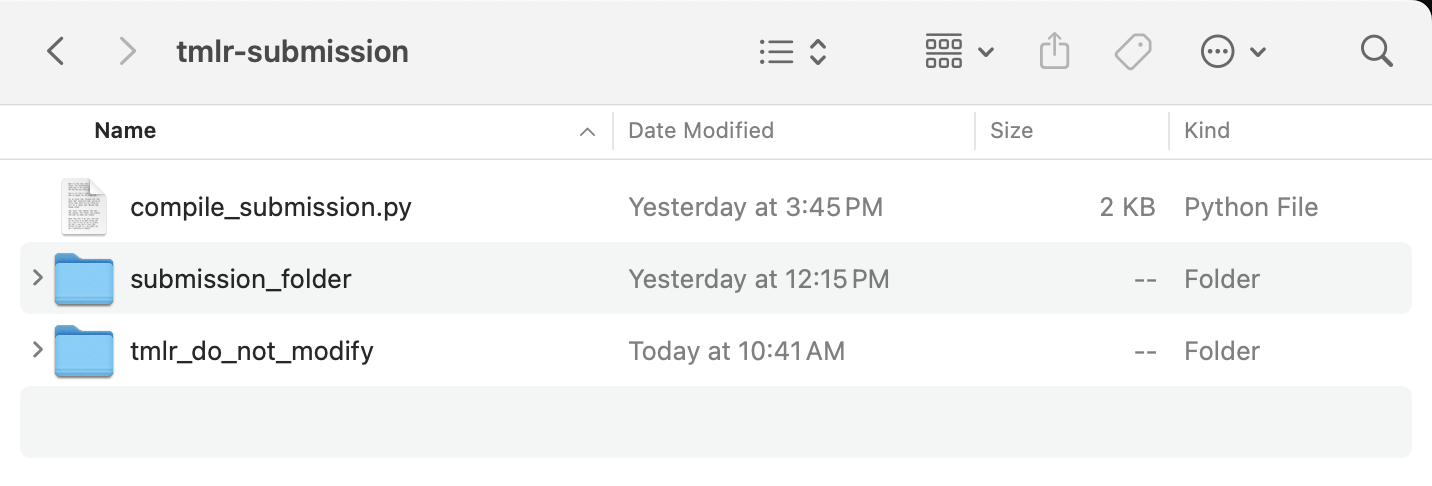
You can enter `Ctrl+S` anytime to download a copy of your project ZIP folder to ensure that you do not lose progress.
Import Project ZIP
You can also import a project ZIP folder.

This expects you to upload a full project ZIP folder, for example one that was previously downloaded using the Download Project ZIP button. This ZIP folder should contain both submission_folder and tmlr_do_not_modify.
Download Only Submission ZIP
When your submission is complete and you wish to submit it on OpenReview, you must submit a zipped folder containing only the contents of submission_folder, not including tmlr_do_not_modify.
The “Download Only Submission ZIP” button downloads just the submission_folder:

In contrast, the “Download Project ZIP” button downloads everything including both submission_folder and tmlr_do_not_modify.
Download PDF
When creating a Beyond PDF submission on OpenReview, you still need to upload a PDF for archival purposes. To download a PDF of your submission, click the “Download PDF” button in the top right:

This will open the browser’s Print dialog box applied to the content of the preview pane only. Please select “Save as PDF” in the Destination box:
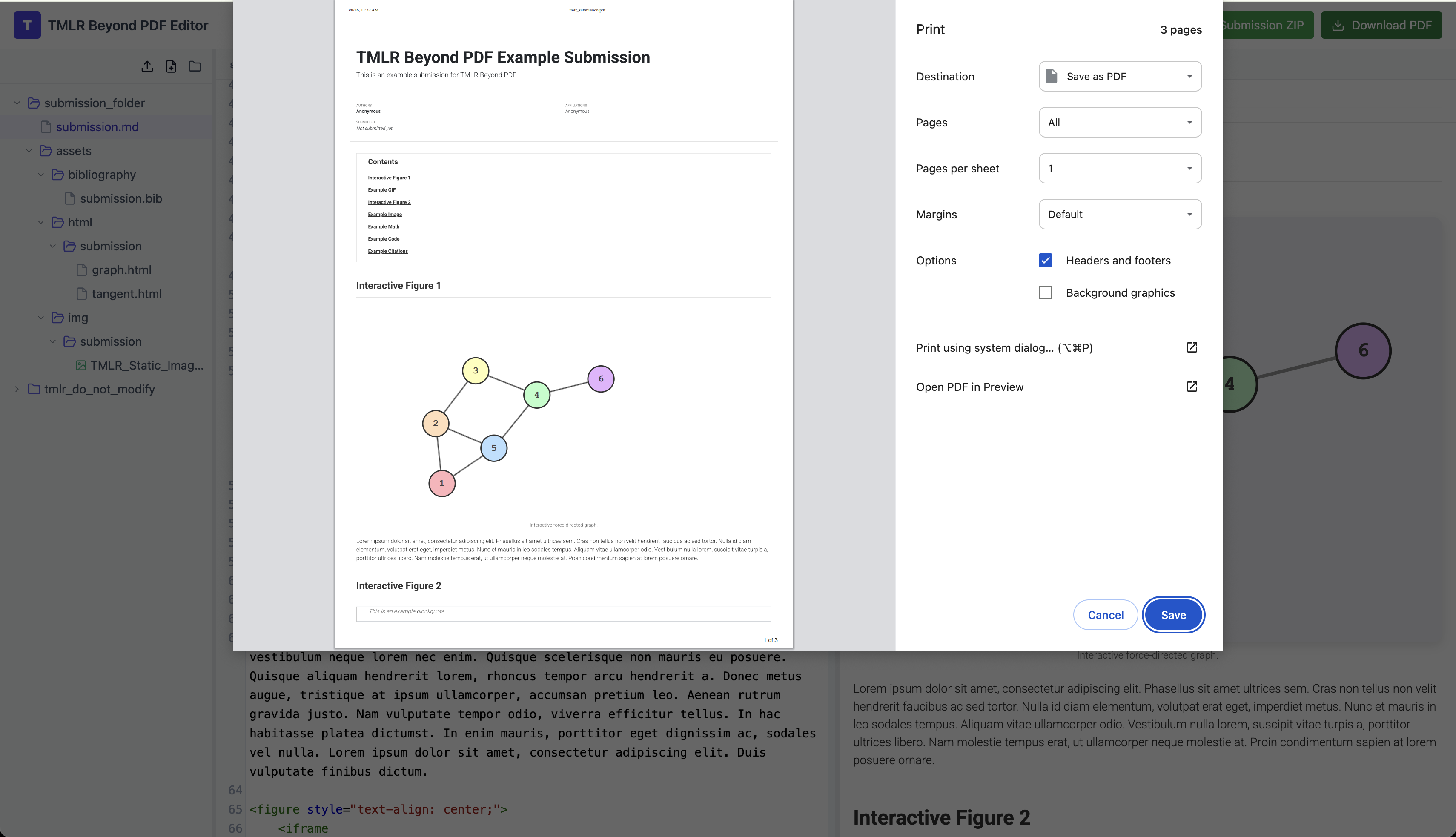
The resulting file, tmlr_submission.pdf, can be uploaded on OpenReview, please see the Submitting to TMLR on OpenReview section for details.
Quickstart using Local Development
This process can be used as an alternative to using the online editor, or it can be used in conjunction with the online editor, because the underlying files are the same. For example, you can always start a new TMLR Beyond PDF submission in the online editor and then download the zip folder for the submission and continue working on it locally. Similarly, you can always upload your submission files as a zip folder to the online editor to continue working on it online.
-
Get the Author Kit: Download the TMLR Beyond PDF Author Kit. The Author Kit contains a
submission_folderthat you must modify when creating your submission (described in more detail below). It also contains a script calledcompile_submission.pythat you can use to build your submission website locally for development. To runcompile_submission.py, you must have Docker installed. Please do not modify anything in the foldertmlr_do_not_modify. -
Add Content to your Submission: Create your submission as detailed in the Creating a TMLR Beyond PDF Submission section. The high-level steps are:
- Update the submission file
submission.mdwith your main submission content. - Add any static images for your submission to
assets/img/submission/. - Add any interactive HTML figures to
assets/html/submission/. - Update the bibtex file with your citations in
assets/bibliography/submission.bib. This bibliography is formatted just like a standard LaTeX bibliography.
- Update the submission file
-
Render the Submission Locally: To render your website locally, you must first have Docker installed. Then, you can run
python compile_submission.py, which will build your website and start a server so that you can view the resulting page locally at http://0.0.0.0:8080/tmlr-beyond-pdf/under_review/index.html. -
Submit on OpenReview: Once you are happy with your submission and have tested it locally, please follow these steps:
- Zip the
submission_folderusing the commandzip -r submission_folder.zip submission_folder. - Then, create a submission as usual on OpenReview, uploading
submission_folder.zipin the “Beyond PDF” section. Please select “Beyond PDF submission” as the Submission Type. -
Important: a PDF version of your submission is also required for archival purposes. Please use the “Print to PDF” from your browser to save a PDF copy of your Beyond PDF website. Please do not use any other format for your PDF.
- Note that if you use the Beyond PDF Online Editor, you can download the correct PDF using the “Download PDF” button in the top right, as shown in the Download PDF section.
- Once you submit to OpenReview, the system will automatically pull the zipped folder from your submission and add it to the Under Review page of the TMLR Beyond PDF website. The reviewing process will take place on OpenReview as usual, with reviewers referencing your compiled page on the TMLR Beyond PDF website.
- Zip the
Creating a TMLR Beyond PDF Submission
The directory structure of the submission_folder in the TMLR Beyond PDF Author Kit is as follows:
submission_folder/
├── submission.md                  # <--- Update this markdown file with your submission content
└── assets
    ├── img
    │   └── submission             # <--- Add your static images here
    │       └── YOUR IMAGES
    ├── gif
    │   └── submission             # <--- Add your videos as GIF files here
    │       └── YOUR VIDEOS
    ├── html
    │   └── submission             # <--- Add your interactive html figures here
    │       └── YOUR HTML FIGURES
    └── bibliography               # <--- Add references to this bibtex file
        └── submission.bib
To create your submission, you need to:
- Update the Markdown file
submission.mdwith your main submission content. - Add any static image assets will be added to
assets/img/submission/. - Add dynamic HTML content (that can include Javascript for animations, etc.) to
assets/html/submission/. - Add your bibliography to
assets/bibliography/submission.bib.
The main content of your submission will be written in the Markdown file submission_folder/submission.md. The header of the file looks like this:
---
layout: distill
title: [Your Submission Title]
description: [Your Abstract]
htmlwidgets: true

# Anonymize when submitting
authors:
  - name: Anonymous

# Do not change this name, just use "submission.bib".
bibliography: submission.bib

# Optionally, add a table of contents to your submission.
#   - Make sure that the TOC names match the actual section names
#     for hyperlinks within the submission to work correctly.
toc:
  - name: [Section 1]
  - name: [Section 2]
  # You can additionally add subentries like so:
    subsections:
    - name: [Subsection 2.1]
  - name: [Section 3]
---

# ... The content of your TMLR Beyond PDF submission. ...
You need to update the title, description and optionally toc fields.
Do not fill in the authors field, your submission must be anonymous for the review process.
Check out the example submission.md to see how you can add images and interactive figures, and how to write math using \(\LaTeX\).
An example submission is rendered here.
Testing Your TMLR Beyond PDF Submission Locally
You can render your Beyond PDF submission locally to ensure that it looks good before submitting:
- Make sure you have Docker installed.
- Ensure that Docker is started; for example, on Mac OS, you can run
open -a Dockerin the terminal to start Docker. - To test your submission locally, run
python compile_submission.py. You should then be able to see your submission locally by going to http://0.0.0.0:8080/tmlr-beyond-pdf/under_review/submission/.
Submitting to TMLR Beyond PDF
-
Zip the updated
submission_foldercontaining your content, using the commandzip -r submission_folder.zip submission_folder. -
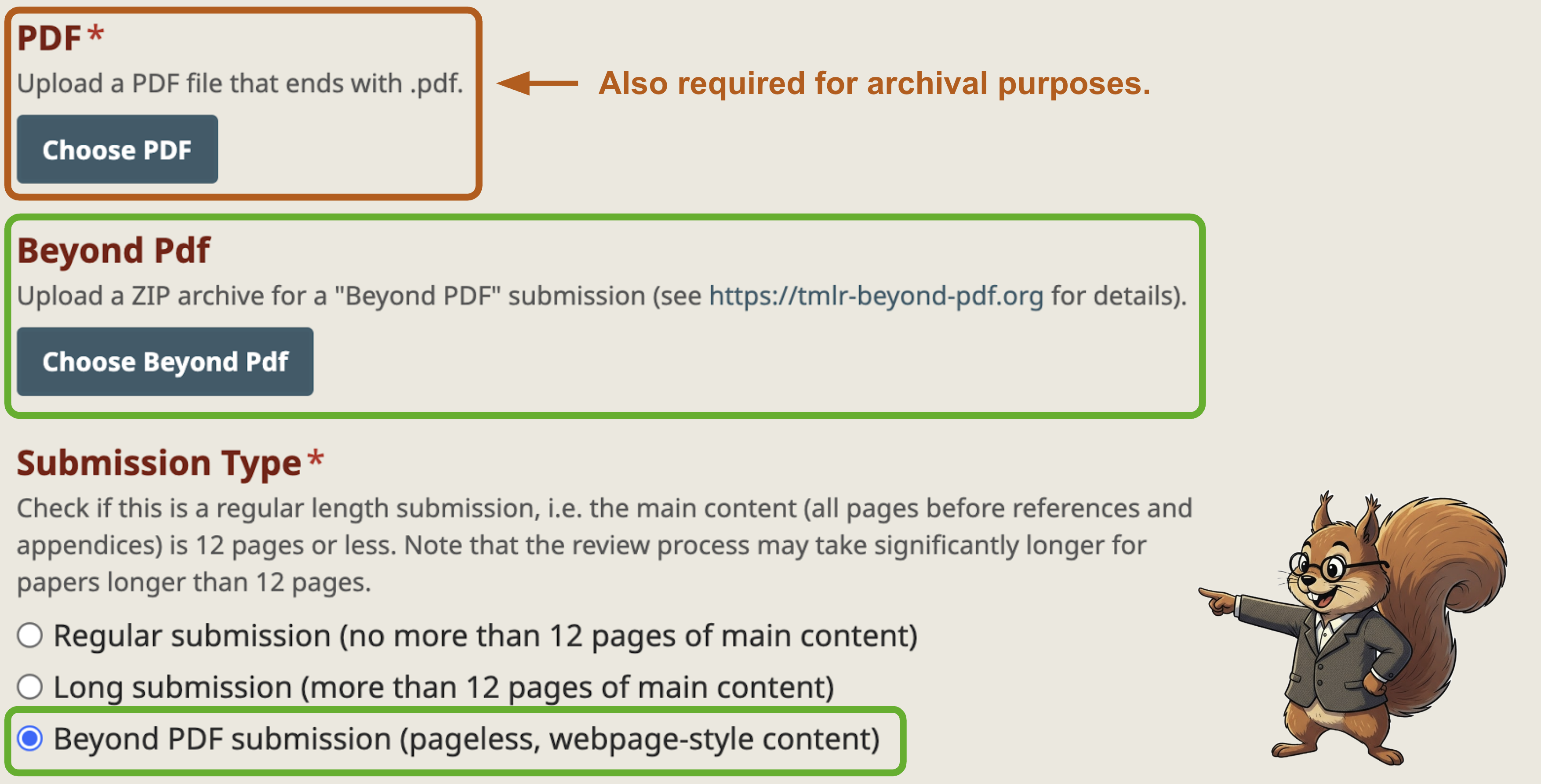
Then, create a new TMLR submission on OpenReview, upload
submission_folder.zipin the “Beyond PDF” section, and select “Beyond PDF submission” as the Submission Type. Once your submission is marked as under review on OpenReview, it will be automatically added to the Under Review page of the TMLR Beyond PDF website.
It will be created with the following format:
https://tmlr-beyond-pdf.org/under_review/I5jhQ7uEPP/
where I5jhQ7uEPP is the OpenReview ID for your submission.
Camera-Ready Instructions
The main change that must be made for the camera-ready version is to de-anonymize the paper by filling in the authors and affiliations in the submission.md header:
---
layout: distill
title: [Your Submission Title]
description: [Your Abstract]
htmlwidgets: true

# Fill in the authors and affiations only when creating the camera-ready version!
# authors:
#   - name: Albert Einstein
#     url: "https://en.wikipedia.org/wiki/Albert_Einstein"
#     affiliations:
#       name: IAS, Princeton
#   - name: Boris Podolsky
#     url: "https://en.wikipedia.org/wiki/Boris_Podolsky"
#     affiliations:
#       name: IAS, Princeton

# Do not change this name, just use "submission.bib".
bibliography: submission.bib

# Optionally, add a table of contents to your submission.
#   - make sure that TOC names match the actual section names
#     for hyperlinks within the submission to work correctly.
toc:
  - name: [Section 1]
  - name: [Section 2]
  # you can additionally add subentries like so
    subsections:
    - name: [Subsection 2.1]
  - name: [Section 3]
---

# ... The content of your TMLR Beyond PDF submission. ...
You can test the camera-ready version in the same way as before, using python compile_submission.py to start a local server and double-check the submission at http://0.0.0.0:8080/tmlr-beyond-pdf/under_review/index.html. Note that it will be rendered on the Accepted page only after it is submitted in OpenReview as the camera-ready version; for local testing it will still be on the Under Review page.
To submit the camera-ready version, follow the same steps as before, zipping the submission folder using zip -r submission_folder.zip submission_folder and uploading submission_folder.zip in the Beyond PDF section in the OpenReview submission form.
Your camera-ready submission should then appear in the Accepted Papers section of the TMLR Beyond PDF website.